
Confidential documents in Turnitin
What are the options?
If you want to prevent other instructors within UU from accessing sensitive or confidential information, you have two options:
1. Anonymize the document and remove confidential information. Remove or anonymize confidential passages and upload the document via the regular route.
2. Do not include the document in the Turnitin database. Indicate that the document should not be stored in the database. A plagiarism report will still be generated, but the submitted document will never appear as a matching source in the plagiarism report of another submission.
You can configure this in two ways in Turnitin: via the Brightspace Assignment (option A) or via the standalone version of Turnitin (option B, commonly used for confidential theses). Instructions for both options are provided below:
A. Do not store the document via Brightspace
Turnitin is available in Brightspace as an integration within the Brightspace Assignment.
- Within the Content area of a course, go to Create New and select Assignment.
- From here, you can enable plagiarism detection, as described in the steps below.
Settings
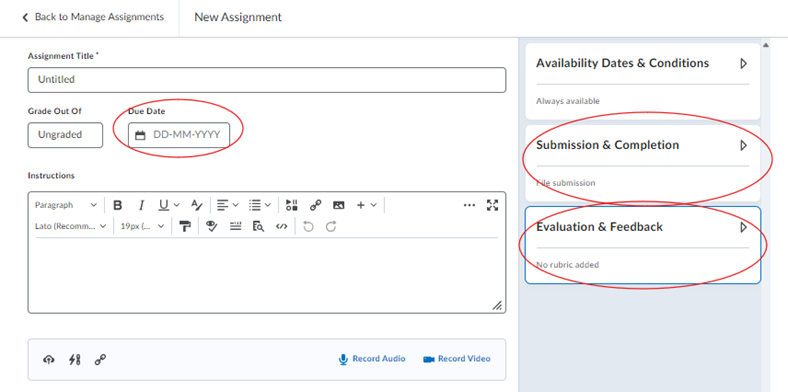
Most settings do not affect Turnitin. The settings that do have an effect are circled in the image below.
Due Date
- The Due Date may affect when the report is generated.
Submission & Completion
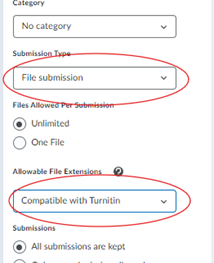
- The Submission Type must be a “File submission” or “Text submission” in order to be checked for plagiarism.
- For Allowable File Extensions, you can leave the setting as “No Restrictions”.
- There is a setting “Compatible with Turnitin” in the list. If you select this, only files for which Turnitin can generate a report will be allowed.
With the “No restrictions” setting, students may submit files for which Turnitin cannot generate a report (for example PowerPoint files). In that case, no percentage or report will be shown for the submission.
This will occur rarely.
Evaluation & Feedback
- At the bottom under Evaluation & Feedback, click Manage Turnitin:
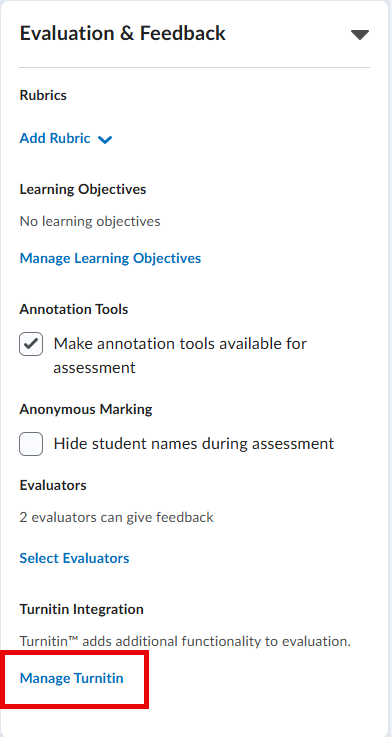
- In the screen that opens, check Enable Similarity Report for this folder
- Scroll down and click the More options button
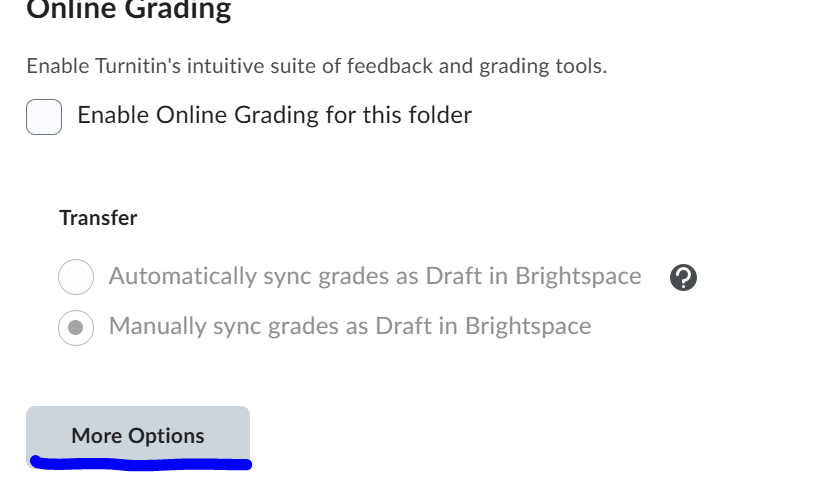
- Under Submission settings, open the drop-down menu and select Do not store the submitted papers
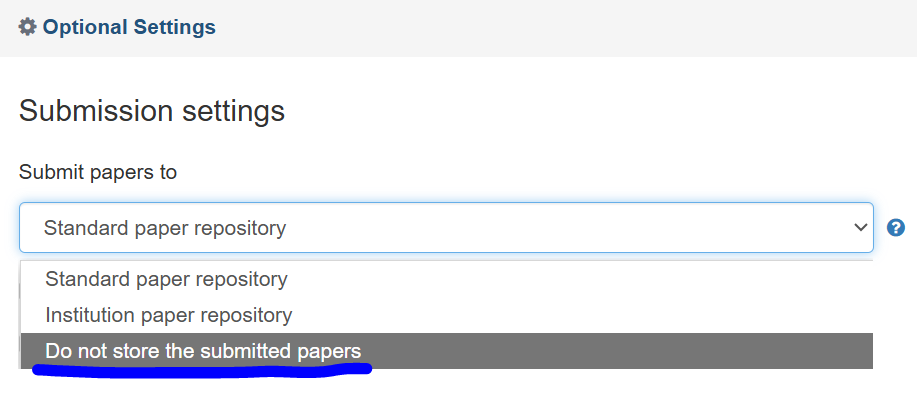
- Scroll further down and click the Submit button. Do not change any other settings in this screen.
B. Do not store the document via Turnitin standalone
Step 1: Log in
Log in via this link with your staff SolisID:
After logging in, you will be in the Turnitin environment with the role ‘Instructor’.
Step 2: Create a class
-
- Create a class: To create a new Class, fill in the required fields on the ‘Create a new class’ page. Enter the following fields:
- Class type: Choose ‘Standard’
- Class name: Enter a clear name for the Class
- Enrollment key: Enter a self-chosen password. Students will need this key to enroll
- Subject area: Choose one of the options; this has no further effect on the process
- Student level: Choose one of the options; this has no further effect on the process
- Class end date: After this date, the Class will no longer be available
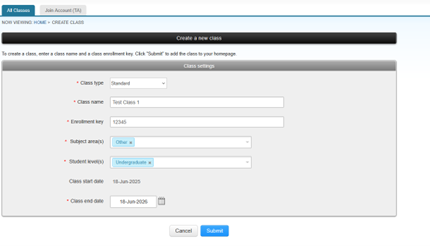 2. Confirm: Click Submit to create the Class.
 - Save details: After creation, a screen will appear with the Class ID and the chosen Enrollment key. Save this information carefully, as students need both to enroll.
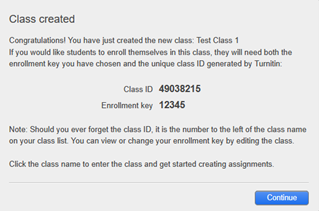
- Finish: Continue: You have now successfully created a Class.

Step 4: Create an ‘Assignment’ for confidential documents that are not stored in the database
- Navigate: Click on the name of the newly created Class.

- Add: Click the Add Assignment button.
- Enter details: Fill in the assignment information.
- Title: Give the assignment a title.
- Dates: Set a Start Date, Due Date, and Feedback Release Date
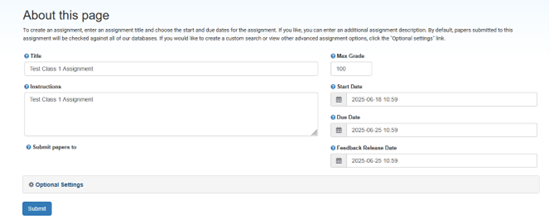
- Open the drop-down menu under Submit papers to and select Do not store the submitted paper
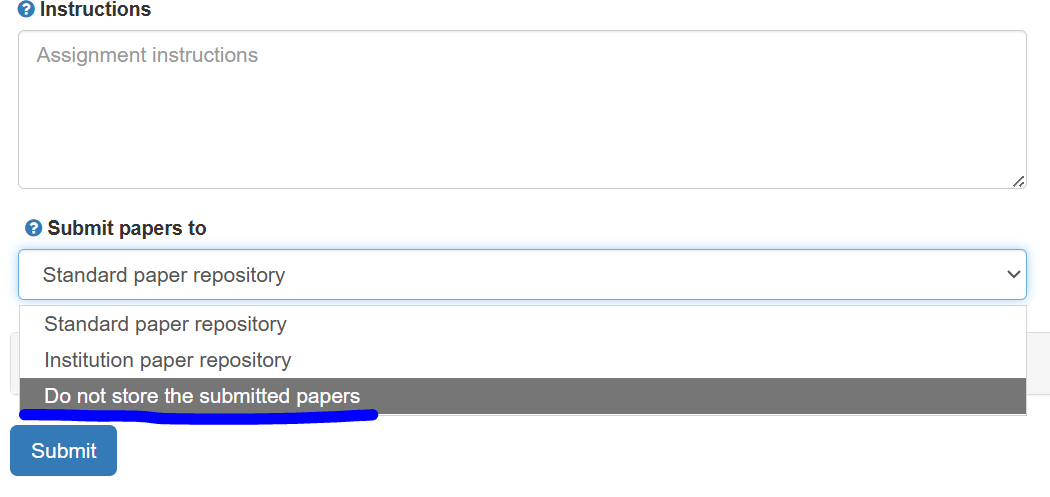
- Then click Submit. You are now in the ‘assignment inbox’, which is currently still empty.